From Quote to Payment: How Eazy-Biz Simplifies Your Billing
See how Eazy-Biz connects quotes, draft invoices, PayFast payment links and recurring billing to help small businesses spend less time on admin.
A client asks for a price. You prepare a quote, send it and get the go-ahead. Then comes another round of admin: copying the details into an invoice, checking the numbers again and explaining how to pay.
When those steps happen in separate documents and spreadsheets, even a straightforward job can involve a lot of repeated work.
Eazy-Biz brings quoting, invoicing and payment tools into one workspace. Here is how you can use it to move a client from the first price discussion to payment, with fewer details to capture twice.
The short answer
Eazy-Biz helps you manage the billing process by letting you:
- Prepare a clear quote with your business details, line items, notes and terms.
- Create a draft invoice from an accepted quote without retyping the job.
- Send a professional invoice with a consistent layout and a clear total.
- Offer online payment through PayFast once your payment setup is ready.
- Set up recurring invoices for repeat services.
- Keep track of invoices and income as part of your business admin.
You still decide what to charge, agree on the scope and review the documents before sending them. Eazy-Biz helps connect the steps around those decisions.
1. Start with a quote the client can understand
A useful quote does more than give the client a total. It explains what they will receive and what you have allowed for in the price.
In Eazy-Biz, open Quotes and choose New Quote. Select a template, add your business and client details, then describe the work under Line Items.
Use descriptions that mean something to the person buying the service. For example, "Brochure design: four pages, supplied as a print-ready PDF" tells the client more than "Design work".
Use Notes for supporting details, such as the number of revision rounds included. Put your agreed payment timing and delivery conditions in Terms & Conditions, and check the Valid Until date.
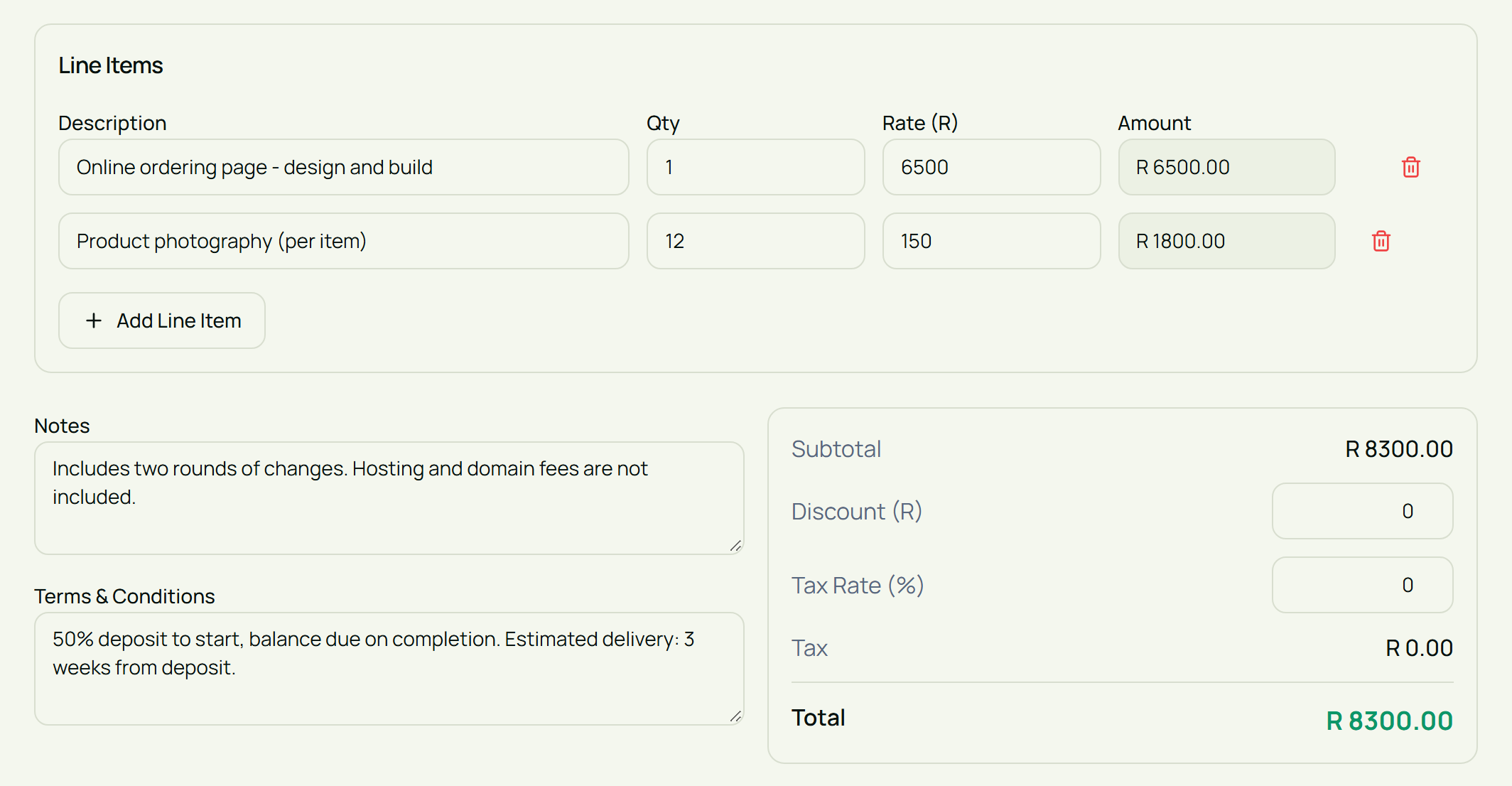
Before saving, open Preview and read the document as if you were the client. Check quantities, rates, discounts and tax settings as well as the final total.
Once you create the quote, download the PDF and share it with your client. Saving a quote does not automatically send it.
For a fuller walkthrough, see how to create a professional quote.
2. Turn approval into a draft invoice
The client has agreed to proceed. This is where a disconnected process often sends you back to a blank invoice template.
In Eazy-Biz, marking a quote Accepted automatically creates a draft invoice. The quote details carry through, giving you a document to review rather than rebuild.
That matters when a job has several line items. You are less likely to leave something out or accidentally type a different price while copying the information.
The draft is still a review step. Check the client details, payment timing and any approved changes before finalising it. If the client has asked for extra work, agree on the additional price before adding it to their bill.
Our quote-to-invoice workflow covers this handover in more detail.
3. Keep your invoice consistent with the agreement
Your invoice should be easy to connect to the quote the client approved.
Eazy-Biz provides invoice templates, automatic numbering and PDF downloads. Using a consistent template helps your documents look familiar, while a specific invoice number gives you and the client a clear reference for questions or payment updates.
Before sending, check:
- The client name and billing details.
- The work being charged for and any agreed additions.
- Quantities, rates, discounts and the final total.
- The due date and payment details.
- Any notes the client needs to process the invoice.
You can then send the invoice using the app's invoice email tools or download the PDF to share yourself. See how to create and send your first invoice for the detailed steps.
A practical example: billing for a brochure design
Suppose you run a small design business. A client needs a four-page brochure and some image preparation.
For illustration, the amounts below leave tax out of the calculation.
| Quoted work | Amount |
|---|---|
| Four-page brochure design, including two revision rounds | R3,200 |
| Preparation of client-supplied images | R600 |
| Total | R3,800 |
Your quote also explains that the client supplies the approved wording and that extra revision rounds need a separate agreement.
Once the client approves, mark the quote Accepted in Eazy-Biz. Open the resulting draft invoice and review the R3,800 total against the agreement. Set the appropriate payment date and send the invoice when payment is due under your terms.
The benefit is practical: the agreed work and prices move into the invoice without another round of typing. You can spend your review time checking that the bill is correct.
4. Give clients an online payment option
A clear invoice also makes the next step obvious: how the client can pay.
Eazy-Biz supports PayFast payment links for individual invoices. With PayFast configured for your business, you can give clients an online payment route connected to their invoice.
That can reduce the back-and-forth of sending payment instructions separately. The client has a way to act on the invoice when they receive it.
Payment links do not replace clear terms or follow-up. Keep the due date visible and review outstanding invoices regularly. Our guide to tracking unpaid invoices without a spreadsheet explains how to make that a routine.
5. Set up recurring invoices for repeat services
Some work follows the same billing pattern every month: website maintenance, a consulting retainer or an ongoing support agreement.
Instead of recreating those invoices each time, use the Recurring tab in Invoices to set up recurring billing. Eazy-Biz can generate invoices and email them to the client on the configured cycle, with a PayFast payment link.
Before setting up the schedule, confirm the client's email address, the amount and the billing arrangement. Review the setup when the service or price changes.
Recurring invoices automate the invoice routine. They do not mean the client is automatically charged: the client still needs to complete payment.
6. Connect paid invoices to your income records
The process does not end when you send the invoice. You also need to know which bills remain outstanding and what income has come into the business.
Eazy-Biz keeps invoice statuses in your invoice list, and paid invoices feed into your income transactions. This helps connect billing to the financial side of your workspace and reduces duplicate capture.
Keep those records current, especially when a client pays outside the online payment flow. Check that payment has actually arrived before marking an invoice paid.
A short weekly admin routine gives you time to review unpaid invoices, follow up with clients and check your records while the details are still fresh.
Frequently asked questions
Does accepting a quote automatically send an invoice?
No. Marking a quote Accepted in Eazy-Biz creates a draft invoice. Review and finalise that draft, then send it when payment is due under the arrangement you agreed with the client.
Can I download quotes and invoices as PDFs?
Yes. Eazy-Biz lets you download quotes and invoices as PDFs to share with clients. Use Preview first to check the document's details and layout.
Can clients pay an invoice online?
Eazy-Biz supports PayFast payment links for individual invoices. Your business needs its PayFast setup configured before using this payment option.
Do recurring invoices charge clients automatically?
No. Recurring invoicing generates and emails invoices on the configured cycle. A payment link gives the client a way to pay; it is not an automatic debit from their account.
Do I need to enter the same income again after an invoice is paid?
Paid invoices feed into Eazy-Biz's income transactions. Check your records before adding a manual income entry for the same payment so that you do not count it twice.
Make your next billing cycle easier with Eazy-Biz
A connected billing process gives each step a clear place: the quote records the offer, the invoice requests payment and your records show what has been paid.
Eazy-Biz brings those steps together so you can spend less time moving the same information between documents. Start with your next quote, review the draft invoice when the client accepts and keep the payment status current as the job progresses.
Get started with Eazy-Biz and prepare your next quote in the same workspace you use for invoicing.
Feature availability and usage limits depend on your plan. See pricing for the available options. Online invoice payments require PayFast setup.
This article is general information for South African business owners and is not tax, legal, or financial advice. Rules and thresholds change, so confirm your position with SARS or a registered tax practitioner before acting on it.